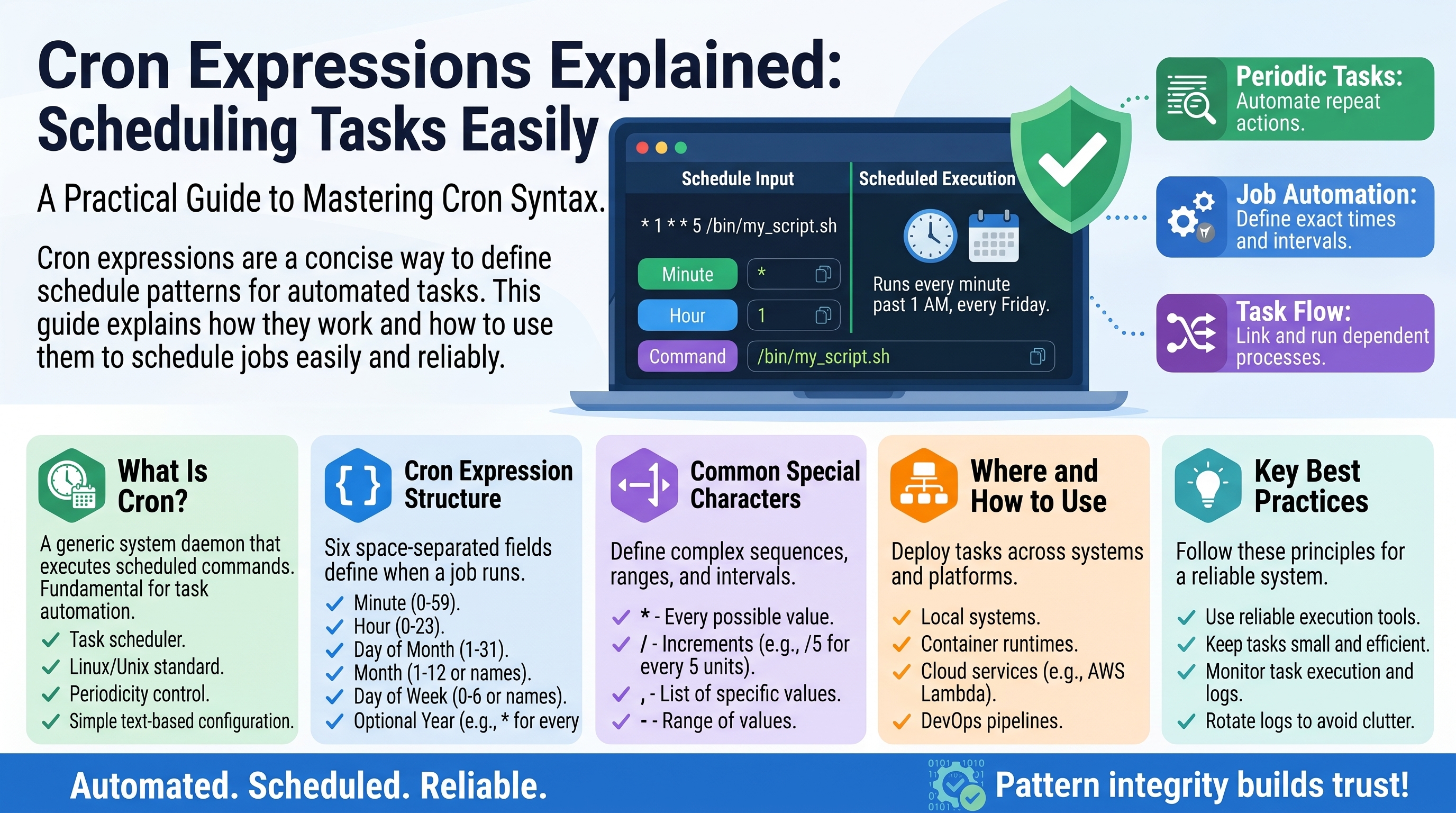
Cron Expressions Explained: Scheduling Tasks Easily
Every night at 2 AM, somewhere, a backup runs. Every Monday morning, a report lands in someone's inbox. Every fifteen minutes, a server checks whether a website is still alive. Almost none of this is done by a human clicking a button — it is done by cron, the humble task scheduler that has been quietly running the world's repetitive jobs for nearly fifty years.
Cron reads a tiny line of text called a cron expression that describes when something should run: 0 2 * means "2:00 AM every day." Five fields, a few special characters, and you can schedule anything. In this guide, you will learn what each field means, how to read common schedules, how to build your own, and the pitfalls — timezones, overlapping runs, the day-of-month trap — that turn a one-line schedule into a 3 AM incident.
What Cron Is
Cron is a time-based job scheduler built into Linux and macOS (Windows has the similar Task Scheduler). You give it a schedule plus a command, and it runs that command automatically, forever, with no human involvement. Typical jobs:
- Database backups every night
- Clearing old cache and log files weekly
- Sending scheduled emails and reports
- Renewing security certificates monthly
- Checking a website's uptime every 5 minutes
On Linux, your schedules live in a file called the crontab, edited with the crontab -e command. Each line is one job: a cron expression (the "when") followed by the command (the "what"):
0 2 * * * /home/user/scripts/backup.sh
The five fields run left to right, smallest unit to largest grouping: minute (0-59), hour (0-23), day of month (1-31), month (1-12), day of week (0-6, Sunday = 0). Memorize that order and you have already learned half of cron.
The 5 Fields in Detail
Each field accepts specific values:
Field          Allowed values
-----          --------------
minute         0-59
hour           0-23  (24-hour clock: 14 = 2 PM)
day of month   1-31
month          1-12  (or JAN-DEC)
day of week    0-6   (or SUN-SAT; both 0 and 7 mean Sunday)
An asterisk means "every" — every minute, every hour, every day, whatever the field. So means "every minute of every hour of every day" (use with care — that is 1,440 runs a day).
Special Characters: The Rest of the Vocabulary
Four more characters give cron expressions their full power:
*    every value in the field
,    list of values:  1,15  = "the 1st and the 15th"
-    range:           1-5   = "1 through 5"
/    step:            */15  = "every 15" (starting at 0)
In the day-of-week and month fields, you can also use names: MON-FRI, JAN, SUN. Names are clearer than numbers — prefer them when your cron version supports them.
Worked mini-examples of each character:
0 9 1,15 — 9:00 AM on the 1st and 15th of every month (the , lists two days).0 9 MON-FRI — 9:00 AM Monday through Friday (the - is a range; handy for business-hours jobs)./15 — every 15 minutes (/15 in the minute field: 0, 15, 30, 45).0 /2 — every 2 hours, on the hour (*/2 in the hour field: 0, 2, 4 ... 22).
How to Read Common Schedules
Let us decode the schedules you will meet in the wild. Read left to right, translating each field:
0 * * * *          "At minute 0 of every hour"  = once an hour, on the hour
30 2 * * *         "At 02:30 every day"          = daily at 2:30 AM
0 0 * * 0          "At 00:00 on Sundays"         = weekly, Sunday midnight
0 0 1 * *          "At 00:00 on day 1 of month"  = monthly, 1st at midnight
*/5 * * * *        "Every 5 minutes"
0 9-17 * * *       "At minute 0, hours 9-17"     = once an hour, 9 AM-5 PM
30 4 * * 1-5       "At 04:30, Monday-Friday"     = weekdays at 4:30 AM
0 0 * * 6,0        "At midnight Saturday+Sunday" = every weekend
A useful reading trick: start from the rightmost restricted field and work left. In 30 4 1-5, the day-of-week is restricted to weekdays, so read it as "on weekdays, at 04:30." The * fields just mean "don't care."
Worked Examples: Build Your Own Schedules
"Back up the database every night at 2 AM." Minute = 0, hour = 2, everything else = every:
0 2 * * *
"Check website uptime every 10 minutes." Step of 10 in the minute field:
*/10 * * * *
"Send the sales report at 8:30 AM on the first Monday of each month." This one is trickier — cron has no "first Monday" concept. The standard approach: run on the 1st through 7th, but only on Mondays, and note the famous day-of-month/day-of-week interaction (explained in Pitfalls below). The safe, explicit version used in practice:
30 8 1-7 * 1
Read as: 8:30 AM, on days 1–7 of the month that are also Monday. Because of how cron combines these two fields (OR, not AND — see below), this actually runs on all of days 1–7 plus every Monday. The robust real-world fix is a wrapper: run 30 8 1-7 and let the script itself check "is today Monday?" before proceeding. Which brings us to...
Pitfalls That Cause 3 AM Incidents
Pitfall 1 — The day-of-month / day-of-week trap. This is cron's most infamous gotcha: when both the day-of-month and day-of-week fields are restricted (not ), cron combines them with OR, not AND. 0 0 1 1 does not mean "midnight on the 1st if it is a Monday" — it means "midnight on the 1st of the month and midnight every Monday." If you need AND logic, keep one field as * and put the other condition inside your script.Pitfall 2 — Server timezone vs. your timezone. Cron runs in the server's timezone, not yours. A job set for "2 AM" on a server in UTC fires at 7 AM Pakistan time (UTC+5). Daylight-saving changes make it worse: a 2:30 AM job may run twice, once, or never on changeover days. Always check what timezone the server uses (date on the command line), and for critical jobs prefer UTC everywhere.Pitfall 3 — Overlapping runs. If a job takes 20 minutes but is scheduled every 15 minutes, a second copy starts while the first is still running. Two backups writing the same file, two report-senders emailing the same customers — chaos. Defenses: schedule with generous margins, or add locking (a lock file or tool like flock) so a new run exits immediately if the previous one is still going:
*/15 * * * * /usr/bin/flock -n /tmp/myjob.lock /home/user/scripts/job.sh
Pitfall 4 — The environment is not your shell. Cron runs commands with a minimal environment: your usual PATH, aliases, and environment variables are not there. A script that works perfectly when you run it by hand fails under cron because it cannot find python3 or a config value. Fixes: use absolute paths everywhere (/usr/bin/python3, not python3), and set any needed variables at the top of the crontab.Pitfall 5 — Silent failures. By default, cron emails any output to the server's mail — which nobody reads. A job can fail every night for a month before anyone notices. Always log explicitly: append output to a file with a timestamp, so failures are visible:
0 2 * * * /home/user/scripts/backup.sh >> /var/log/backup.log 2>&1
The >> appends normal output and 2>&1 captures errors into the same log. Check the log after the first run — always verify a new job actually ran before trusting it.
How to Test a Schedule Safely
Read it out loud using the left-to-right method above. If you cannot say in plain words when it runs, do not deploy it.Use a cron expression tester — paste the expression into an online cron checker to see the next ten run times. This catches misread fields instantly.Start with a harmless command. Point the schedule at something safe first (like writing the date to a log file) and confirm it fires when expected. Only then attach the real job.Watch the first real run. Check the log file after the first scheduled execution. A job you have never seen run is a job you cannot trust.
Frequently Asked Questions
What is the difference between cron and crontab? Cron is the background service (daemon) that runs scheduled jobs. The crontab ("cron table") is the file where your schedules live — one line per job. You edit it with crontab -e and list it with crontab -l.How do I run a job every 90 minutes? You cannot express "every 90 minutes" in a single cron line, because the minute field resets each hour. The standard workarounds: run every 30 minutes and let the script skip two out of three runs, or schedule three lines (0 1,4,7,10,13,16,19,22 * etc.). Uneven intervals need script-side logic.Why did my cron job not run? The usual suspects, in order: the cron service is not running; the schedule's fields are misread (check with a tester); the command uses a relative path or relies on environment variables that do not exist under cron; file permissions block execution; or the server's timezone is not what you assumed. Check the cron log and your job's own log file.Can cron run a job every few seconds? No — cron's finest granularity is one minute. For sub-minute scheduling, run a script every minute that loops internally, or use a proper scheduler / systemd timer.Is 0 or 7 Sunday in the day-of-week field? Both. Standard cron accepts 0–6 (Sunday = 0) and also treats 7 as Sunday. To avoid confusion, use names (SUN, MON) where supported.Should I use cron or my programming language's scheduler? Cron for system-level, server-level jobs (backups, cleanup, certificate renewal) — it runs even if your app is down. In-app schedulers for application logic tightly coupled to your code (sending a reminder email from the app itself). Many teams use both.
Conclusion
Cron's whole language fits on an index card — five fields, four special characters — yet it runs the repetitive backbone of the internet. The skill is not memorizing syntax; it is reading a schedule out loud before trusting it, respecting the day-of-month OR trap, remembering the server's timezone is not yours, guarding against overlapping runs, and logging everything. Do those five things and your 2 AM jobs will do what they are supposed to do: run, while you sleep.
Related Articles
- Unix Timestamps Explained: What Epoch Time Means
- Time Zones Explained: Scheduling Across the World
- HTTP Status Codes Explained: What 200, 301, 404 and 500 Really Mean
Try Our Free Tools