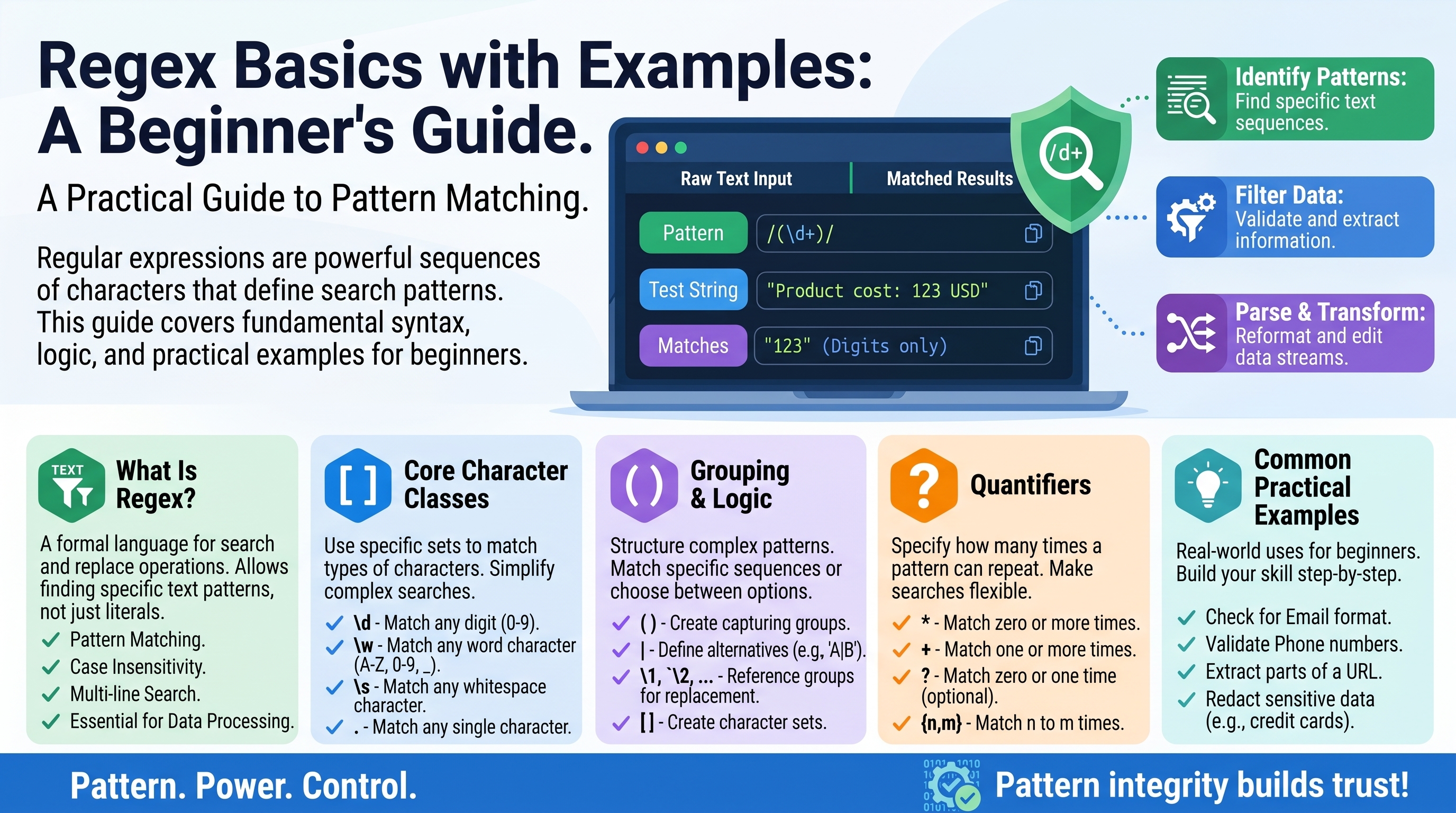
Regex Basics with Examples: A Beginner's Guide
Somewhere in every programmer's life comes a moment like this: you have a thousand-line log file and need every email address in it. Or a spreadsheet of phone numbers in twelve different formats that must all become one format. Doing it by hand would take all afternoon. A regular expression — regex for short — does it in seconds.
A regex is a tiny pattern language for describing text. You write a short pattern, and the computer finds every piece of text that matches it. It looks like line noise at first (^[a-z0-9._%+-]+@[a-z0-9.-]+\.[a-z]{2,}$), but each character in that pattern has a simple, learnable job. By the end of this guide, you will be able to read patterns like that one, write your own, and use them for searching and find-and-replace.
What Regex Is (and Where You Already Use It)
A regular expression is a search pattern written in a compact special syntax. Instead of searching for one exact string, you describe the shape of the text you want: "three digits, then a dash, then four digits" or "any word that starts with 'pre'".
You have probably used regex without knowing it:
- Text editors and IDEs (VS Code, Notepad++, Sublime) have a regex toggle in find-and-replace.
- Google Sheets / Excel functions like
REGEXMATCHandREGEXEXTRACT. - Programming languages — JavaScript, Python, PHP, and Java all have built-in regex support.
- Command line tools like
grepare essentially regex search engines. - Form validation — the "please enter a valid email" check on signup pages is usually one regex.
The syntax is nearly identical everywhere, so learning it once pays off in every tool you touch.
Literal Characters: The Simplest Patterns
The simplest regex is just ordinary text. The pattern cat matches the characters "cat" wherever they appear — in "cat", "concatenate", and "the cat sat". Regex is case-sensitive by default, so cat does not match "CAT" (most tools have a case-insensitive option you can turn on).
A few characters are special — they do not mean themselves, but give instructions. The main ones are:
. ^ $ * + ? { } [ ] \ | ( )
To match one of these characters literally, put a backslash in front of it: \. matches an actual dot, \$ matches an actual dollar sign. Forgetting to escape the dot is one of the most common beginner mistakes — the pattern file.txt matches "filetxt", "file-txt", and "file_txt" too, because the unescaped . means "any character" (more on that below). If you mean a real dot, write file\.txt.
Character Classes: Matching Sets of Characters
A character class — written in square brackets — matches one character from a set you define:
[abc]      matches one of: a, b, or c
[0-9]      matches one digit (the - means a range)
[a-z]      matches one lowercase letter
[A-Z]      matches one uppercase letter
[a-zA-Z]   matches one letter of either case
[^0-9]     the ^ INSIDE brackets means NOT — matches one non-digit
So the pattern gr[ae]y matches both "gray" and "grey". The pattern [0-9][0-9] matches any two digits, like "42" or "07".
Because these are so common, regex provides shorthand classes:
\d   any digit            (same as [0-9])
\D   any non-digit        (same as [^0-9])
\w   word character       (letters, digits, underscore: [A-Za-z0-9_])
\W   non-word character
\s   whitespace           (space, tab, newline)
\S   non-whitespace
.    any character EXCEPT newline
The pattern \d\d\d matches any three digits. \w+@\w+ roughly matches "word characters, an @, more word characters" — the skeleton of an email address (we will build the real one later).
Quantifiers: How Many Times?
A character class matches exactly one character. Quantifiers say how many times the thing before them may repeat:
*      zero or more   (the previous thing is optional, any count)
+      one or more    (required, any count)
?      zero or one    (optional, at most once)
{n}    exactly n times
{n,}   n or more times
{n,m}  between n and m times
Examples that make each one concrete:
ab*cmatches "ac" (zero b's), "abc", and "abbbbc" — thebis optional and repeatable.ab+cmatches "abc" and "abbbbc" but not "ac" — at least onebis required.colou?rmatches both "color" and "colour" — theuis optional. This is the classic real-world use of?.\d{3}matches exactly three digits: "415" but not "41".\d{3,4}matches three or four digits.\d{2,}matches two or more digits.
A handy pattern you will use constantly: \d+ means "a whole number of any length" — one or more digits.
Anchors: Pinning the Pattern Down
By default, a pattern matches anywhere inside the text. The pattern \d+ in "Order 42 shipped" matches "42" — fine. But in form validation, "anywhere" is not good enough: you want the entire input to be a number, not merely to contain one. Anchors pin the match to a position:
^    start of the text (or start of a line, in multiline mode)
$    end of the text (or end of a line, in multiline mode)
\b   word boundary — between a word character and a non-word character
Compare:
\d+matches "42" inside "Order 42 shipped" — a partial match.^\d+$matches "42" but not "Order 42 shipped" — the whole text must be digits from start (^) to end ($). This is the standard shape of a validation pattern.\bcat\bmatches "cat" in "the cat sat" but not in "concatenate" —\brequires the "cat" to stand alone as a word.
Note that ^ has two completely different jobs depending on where it appears: inside brackets ([^0-9]) it means NOT; outside brackets at the start of a pattern (^abc) it means "start of text." Context is everything.
Groups and Alternation: Either/Or Logic
Parentheses do two jobs: they group things so a quantifier applies to the whole group, and they capture the matched text for reuse. The pipe| means "or":
(ab)+matches "ab", "abab", "ababab" — the+now repeats the whole group, not just "b".cat|dogmatches "cat" or "dog".gr(a|e)ymatches "gray" or "grey" — equivalent togr[ae]y, but groups can hold longer alternatives:(Monday|Tuesday|Wednesday).https?://matches "http://" or "https://" — the?applies to the "s".
Captured groups become powerful in find-and-replace: most tools let you refer to group 1, group 2, and so on in the replacement. Converting dates from 2026-10-01 to 01/10/2026 is a find for (\d{4})-(\d{2})-(\d{2}) and a replace with $3/$2/$1 (the exact syntax — $1 or \1 — depends on the tool).
Practical Patterns: Email, Phone, Digits
Let us build three patterns you will actually use, from simple to realistic.
Finding all numbers in text. Pattern: \d+
In the text "Call 415-555-0132 or 628-555-0174", \d+ finds "415", "555", "0132", "628", "555", "0174" — every run of digits. Simple and reliable.
Matching a phone number like 415-555-0132. Pattern: \d{3}-\d{3}-\d{4}
This matches exactly three digits, a dash, three digits, a dash, four digits. To also accept "(415) 555-0132", allow optional parentheses and spaces:
\(?\d{3}\)?[\s-]?\d{3}[\s-]?\d{4}
Reading it piece by piece: optional (, three digits, optional ), optional space-or-dash, three digits, optional space-or-dash, four digits. It matches "415-555-0132", "(415) 555-0132", and "415 555 0132".
Matching an email address. The famous full email pattern is famously long, but this practical version catches real addresses without false positives:
[\w.%+-]+@[\w.-]+\.[a-zA-Z]{2,}
Piece by piece: one or more word-characters/dots/percent/plus/minus (the username part), a literal @, one or more word-characters/dots/minus (the domain), a literal dot, and a top-level domain of at least two letters. It matches "ayesha.khan+news@example.com" and rejects "not-an-email".
Find-and-replace in action. Suppose a document has dates as 01/10/2026 and you need 2026-10-01:
- Find:
(\d{2})/(\d{2})/(\d{4}) - Replace:
$3-$2-$1
Every 01/10/2026 becomes 2026-10-01 in one operation — across a hundred pages if needed. This is the moment regex pays for itself.
Common Beginner Mistakes
- Unescaped dots.
www.example.comas a pattern matches "wwwXexampleYcom". Writewww\.example\.comwhen you mean literal dots. - Forgetting anchors in validation.
\d+as an "age must be a number" check accepts "abc123". Use^\d+$. - Greedy
.*. The pattern<.*>on "<b>hi</b>" matches the whole "<b>hi</b>", not just "<b>" —.*grabs as much as possible. When this bites you, look up "lazy quantifiers" (<.*?>). - Overcomplicating. You rarely need the internet's 6,000-character email regex. The practical pattern above handles real-world input; perfect validation of every edge case is a trap.
- Not testing. Always test a pattern against both text it should match and text it should not match. Free online regex testers highlight matches live as you type, which makes learning dramatically faster.
Frequently Asked Questions
Is regex the same in every language and tool? Almost. The core syntax (classes, quantifiers, anchors, groups) is universal, but there are two main dialects and small differences in advanced features and in how you write back-references ($1 vs \1). For everything in this guide, what you learn transfers directly.
Do I need to learn regex if my editor has "find all"? "Find all" finds one exact string. Regex finds a shape — every date, every email, every number in a range. The moment your search involves "any of these" or "a variable number of," plain find cannot do it and regex can.
Why does my pattern match more than I expected? Almost always one of three causes: an unescaped special character (usually .), a missing anchor (^/$), or a greedy quantifier (.*) eating too much. Check those three first.
Can regex parse HTML or validate emails perfectly? HTML: no — use a proper parser; regex cannot handle nested tags reliably. Emails: "perfectly" requires an absurdly long pattern; the practical pattern in this guide is what working developers actually use, usually combined with sending a confirmation email.
How do I get better at regex? Practice on real messes: take a messy export, log file, or contact list and clean it with find-and-replace. Each small win teaches a new piece of syntax, and within a few weeks the "line noise" starts reading like plain language.
Conclusion
Regex looks intimidating because it is dense, not because it is deep. The entire beginner's toolkit is character classes (\d, \w, [a-z]), quantifiers (*, +, ?, {n,m}), anchors (^, $), and groups with alternation — everything else is combination. Start with \d+ and ^\d+$, graduate to the email and phone patterns above, and try one real find-and-replace task this week. That single practical win will teach you more than any tutorial, and it is the skill that keeps paying off every time text needs taming.
Report content on this page
Related Articles
- Random Strings, Tokens and API Keys: A Practical Guide
- Punctuation Guide: Rules With Real Examples
- JSON Formatter & Validator: A Beginner's Guide
Try Our Free Tools