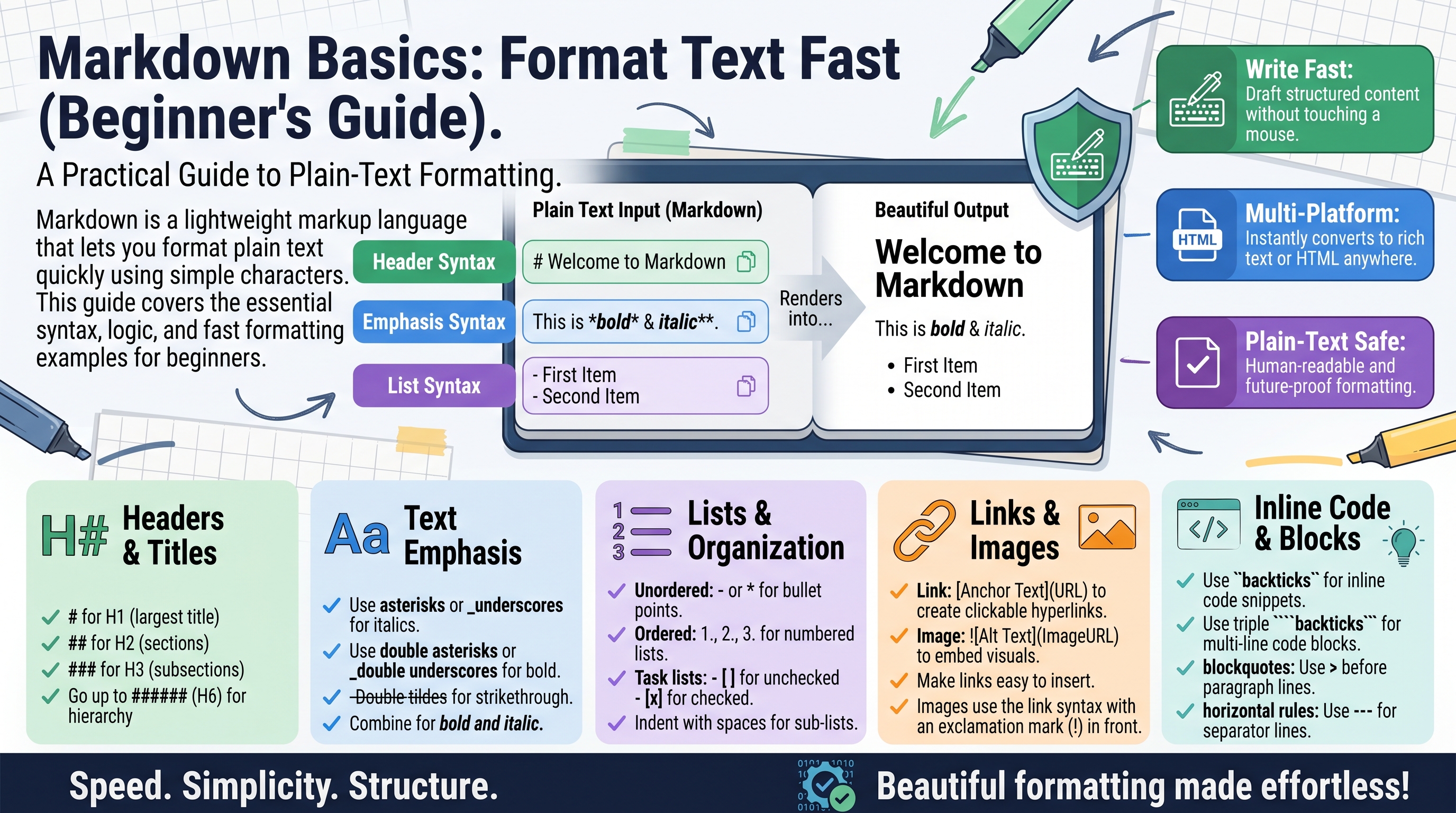
Markdown Basics: Format Text Fast (Beginner's Guide)
Imagine writing a document with headings, bold text, lists, and links — without ever reaching for the mouse, clicking a toolbar, or opening a formatting menu. That is what Markdown offers: you type a few simple characters around your words, and the text is converted into nicely formatted output automatically.
Markdown is used on GitHub, Reddit, Discord, Stack Overflow, in note-taking apps like Obsidian and Notion, and in documentation everywhere. It takes about fifteen minutes to learn the basics, and this guide will get you there with a short example for every feature.
What Is Markdown, Exactly?
Markdown is a lightweight markup language created in 2004 by John Gruber. You write plain text with a few special symbols, and a converter turns it into HTML (or a PDF, or a formatted preview). For example, you type:
## My Heading

This is **bold** and this is *italic*.
And you get a proper heading, bold text, and italic text. The source stays readable as plain text — unlike raw HTML, which looks like this for the same result:
<h2>My Heading</h2>
<p>This is <strong>bold</strong> and this is <em>italic</em>.</p>
That readability is the whole point. Markdown files (usually ending in .md) can be opened in any text editor, emailed, or pasted anywhere, and a human can still read them comfortably.
Headings
Use # symbols at the start of a line. One # is the biggest heading, six is the smallest. Always put a space after the #s.
# Heading 1 (page title — use only once per document)
## Heading 2 (main sections)
### Heading 3 (subsections)
#### Heading 4
##### Heading 5
###### Heading 6 (smallest)
Rendered, these become <h1> through <h6> in HTML. A good structure is one # title, then ## sections, then ### subsections — like the outline of this article.
Bold, Italic, and Strikethrough
Wrap words in asterisks (or underscores) to emphasize them:
This is **bold** text.
This is *italic* text.
This is ***bold and italic*** text.
This is ~~strikethrough~~ text.
You can also use __bold__ and _italic_ with underscores.
A few rules that trip up beginners:
- No spaces between the markers and the word:
boldwill not render as bold. - Use bold for strong emphasis and key terms; use italic for subtle emphasis, book titles, or foreign words.
- Strikethrough (
~~like this~~) is handy for showing edits or humor, but it is not part of the original Markdown spec — still, nearly every modern tool supports it.
Lists
Unordered (Bullet) Lists
Start each line with a dash -, asterisk *, or plus + (dashes are the most common):
- Apples
- Bananas
- Cherries
Ordered (Numbered) Lists
Start each line with a number followed by a period. The neat trick: the actual numbers do not matter — most renderers number them sequentially for you:
1. Preheat the oven
1. Mix the ingredients
1. Bake for 30 minutes
renders as 1, 2, 3. Writing them all as 1. means you never have to renumber when you insert a step in the middle.
Nested Lists
Indent sub-items with two spaces (or a tab):
- Fruits
  - Apples
  - Bananas
- Vegetables
  - Carrots
  1. Wash them
  2. Peel them
Task Lists
Add [ ] for an empty checkbox and [x] for a checked one — perfect for to-do lists on GitHub:
- [x] Write the draft
- [ ] Add examples
- [ ] Proofread
Links
The pattern is visible text — square brackets for what the reader sees, parentheses for where it goes:
Visit [Converters Online](https://convertersonline.com/) for free tools.
You can also make a link reference-style if you reuse the same URL many times:
I use [my favorite editor][1] every day. So does [my colleague][1].

[1]: https://example.com/editor
And bare URLs in angle brackets become clickable automatically:
<https://example.com>
One tip: always include the https:// — without it, some renderers will not recognize the text as a link.
Images
Images use the same pattern as links, with an exclamation mark in front: !alt text.

The text in the square brackets is the alt text — it displays if the image fails to load and is read aloud by screen readers, so describe the image meaningfully instead of writing "image" or leaving it generic. You can also add an optional title in quotes:

Note: plain Markdown cannot set image width or alignment — for that you need HTML or a platform-specific extension.
Code
Inline Code
Wrap short snippets in single backticks:
Run the `npm install` command, then open `config.json`.
This renders in a monospace font with a subtle background — the standard way to mention file names, commands, and function names inside a sentence.
Code Blocks
For multiple lines, use triple backticks (a "fenced" code block). Add the language name after the opening fence for syntax highlighting:
def greet(name): return f"Hello, {name}!"
print(greet("World"))
const greet = (name) => Hello, ${name}!; console.log(greet("World"));
Fenced blocks preserve every space and line break exactly, which is why they are the standard way to share code on GitHub, Stack Overflow, and in chat apps like Discord and Slack.
Blockquotes
Start a line with > for a quoted passage:
> The best way to predict the future is to invent it.
> — Alan Kay
You can nest them (>>) and combine them with other formatting. They are commonly used for quoting previous messages, highlighting warnings, or citing sources.
Horizontal Rules and Line Breaks
Three or more dashes, asterisks, or underscores on their own line draw a horizontal divider:
---
***
___
All three render the same line. For a line break within a paragraph, end the line with two spaces before pressing Enter — though many modern renderers now treat a single Enter as a break, so check your platform's behavior.
Putting It All Together
Here is a small document using everything above:
# Weekend Project Plan

## Goals
- [x] Buy materials
- [ ] Build the shelf
- [ ] Paint it **white**

## Shopping List
1. Wood planks
2. Screws (`M4 x 40mm`)
3. Sandpaper

> Measure twice, cut once. — Carpentry proverb

See the [full tutorial](https://example.com/shelf-guide) for diagrams.
Where You Will Meet Markdown
- GitHub / GitLab — README files, issues, pull requests, and wikis are all Markdown.
- Reddit, Discord, Slack — comments and messages support Markdown formatting.
- Note apps — Obsidian, Joplin, Bear, and Notion (import/export) are built around it.
- Documentation — most developer docs and static site generators (Hugo, Jekyll, Docusaurus) use Markdown source files.
- Blogging — many platforms accept Markdown and convert it to HTML automatically.
Because it is plain text, Markdown plays nicely with version control: you can track every change to a document with Git, something that is painful with Word files.
Frequently Asked Questions
Do I need special software to write Markdown? No. Any text editor works — even Notepad. Dedicated editors (Typora, Obsidian, VS Code with a preview extension) add live previews and shortcuts, but they are optional.
How do I preview what my Markdown will look like? Most platforms render it automatically (GitHub previews .md files, Reddit shows formatted comments). For local files, use an editor with a preview pane, or paste your text into any free online Markdown preview tool.
Why isn't my formatting working? The three classic mistakes: forgetting the space after # in headings, putting spaces between emphasis markers and words ( bold), and forgetting the blank line before/after lists and code blocks. Fix those and 90% of problems disappear.
Can Markdown do tables? Yes, most flavors support them, though the syntax is fiddly:
| Name   | Age |
|--------|-----|
| Ayesha | 28  |
| Bilal  | 34  |
It works, but for complex tables HTML or a dedicated editor is less painful.
What is the difference between Markdown and HTML? Markdown is a shorthand that converts into HTML. It covers the 90% of formatting people use daily with 10% of the effort. For anything exotic (custom styling, embedded videos, precise layouts), you can drop raw HTML directly into a Markdown document — most converters pass it through untouched.
Is there one official Markdown standard? The original 2004 spec is minimal, and over the years different platforms added extensions (tables, task lists, footnotes). CommonMark is the most widely adopted formal specification. In practice, the basics in this guide work identically everywhere.
Report content on this page
Related Articles
- HTML Encoding Explained: Why < Becomes <
- Lorem Ipsum: Why Designers Use Placeholder Text
- URL Slugs: Best Practices for SEO and Readability
Try Our Free Tools