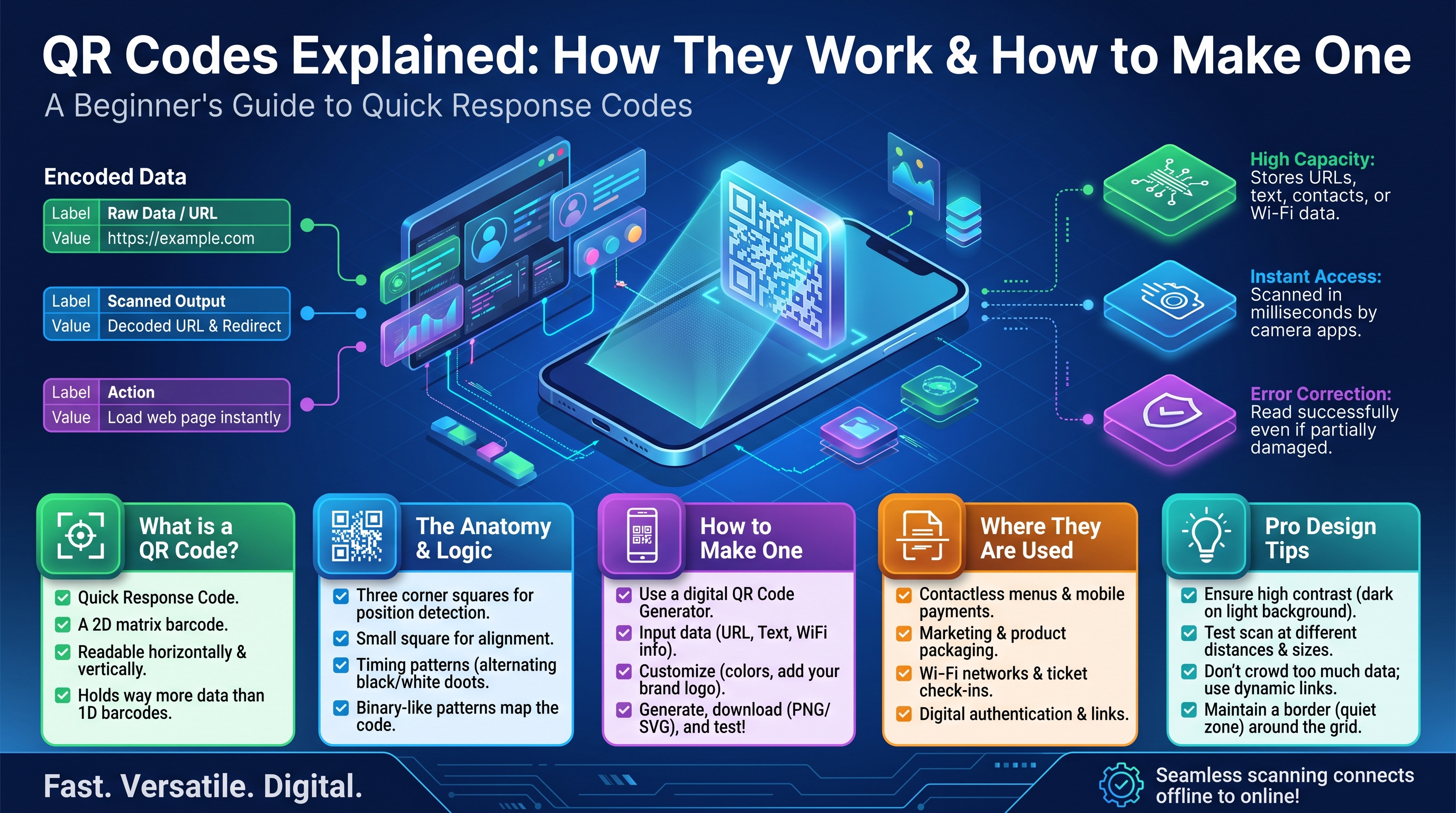
QR Codes Explained: How They Work & How to Make One
Those black-and-white squares are everywhere: restaurant tables, payment counters, boarding passes, product packaging, WiFi routers. Point your phone camera at one and it instantly opens a website, connects you to a network, or sends a payment. But what is actually inside that pattern of squares — and how does your phone read it in a fraction of a second?
This guide explains how QR codes work under the hood, what the different parts of the pattern mean, and how you can create your own for URLs, WiFi passwords, contact cards, and more.
A Quick History
The QR code was invented in 1994 by Denso Wave, a Japanese company that made barcode scanners for Toyota's car factories. Traditional barcodes could only hold about 20 characters — not enough for tracking parts — so engineer Masahiro Hara designed a two-dimensional code that could hold far more data and be scanned from any angle. "QR" stands for Quick Response, because the code was designed to be decoded extremely fast.
Denso Wave made the technology free to use (they kept the patent but chose not to enforce it), which is a big reason QR codes spread worldwide instead of remaining a factory tool.
The Anatomy of a QR Code
Every QR code is a grid of black and white squares called modules. Black means 1, white means 0. But only part of the grid holds your data — the rest is structure that helps the scanner read it. Here is a simplified map of a small QR code:
+--+--+--+--+--+--+--+--+--+--+--+--+--+--+--+--+--+--+--+--+--+
|######|      |######|  <- finder patterns (3 big squares)
|#    #| data |#    #|      in three corners
|# ## #| mod- |# ## #|
|# ## #| ules |# ## #|
|#    #|      |#    #|
|######|      |######|
+-------------------------------------------- ... -----------+
|      timing pattern (alternating row)                    ...
|  data modules: your encoded content lives here ...
|      ...                                        alignment o
|                                                 (larger codes)
+--+--+--+--+--+--+--+--+--+--+--+--+--+--+--+--+--+--+--+--+--+
|######|
|#    #|  third finder pattern (bottom-left)
|# ## #|
|# ## #|
|#    #|
|######|
+--+--+--+--+--+--+--+--+--+--+--+--+--+--+--+--+--+--+--+--+--+
        quiet zone: blank margin around the whole code
The key landmarks:
- Finder patterns — the three large squares in the corners. The scanner looks for these first; their distinctive 1:1:3:1:1 ratio of dark-light-dark-light-dark is recognizable from any angle and any distance, which is why your phone can read a QR code even when it is tilted or upside down.
- Timing patterns — the alternating black-white rows and columns connecting the finders. They tell the scanner how many modules wide the grid is and help it stay aligned while reading.
- Alignment pattern — a smaller square-within-a-square that appears in larger QR codes. It corrects for distortion when the code is printed on a curved surface (like a bottle) or photographed at an angle.
- Quiet zone — the blank margin around the code, at least 4 modules wide on every side. Without it, nearby text or graphics confuse the scanner. This is the most commonly violated rule in homemade QR codes.
- Data modules — everything else. Your actual content, plus error-correction data, encoded as black and white squares.
How Data Is Stored
Before being drawn as squares, your text goes through an encoding process:
- Mode selection. The encoder picks the most compact mode for your content: numeric (digits only), alphanumeric (digits + uppercase + a few symbols), byte (any characters, including URLs), or kanji.
- Bit conversion. The text becomes a stream of 1s and 0s. For example, in byte mode each character becomes 8 bits.
- Error correction. Extra bits are computed and added (more on this below).
- Module placement. The bits are painted onto the grid in a zigzag pattern, skipping the structural areas, masked with a pattern that avoids confusing shapes.
A QR code's capacity depends on its version (grid size, from 21×21 modules up to 177×177) and error correction level. Maximum capacities:
Data mode        Max characters (lowest error correction)
-----------      ----------------------------------------
Numeric only     7,089 digits
Alphanumeric     4,296 characters
Binary / byte    2,953 bytes
Kanji            1,817 characters
In practice, most QR codes you create will be small — a URL or WiFi password fits easily in a low version with plenty of room to spare.
Error Correction Levels: Why Damaged Codes Still Scan
One of the cleverest parts of the QR design is Reed-Solomon error correction — the same mathematics used in CDs and satellite transmissions. A portion of the code stores redundant backup data, so the scanner can reconstruct missing or damaged parts.
There are four levels, and you choose one when generating the code:
Level   Name        Can survive damage to      Best for
-----   ----        ---------------------      --------
L       Low         ~7% of the code            Clean prints, marketing flyers
M       Medium      ~15% of the code           General use (the default)
Q       Quartile    ~25% of the code           Industrial, outdoor signage
H       High        ~30% of the code           Logos embedded, harsh conditions
Higher error correction means a denser code (more modules for the same text), so do not default to H for everything. Level M is the sweet spot for most uses. Level H is what lets companies stamp their logo in the middle of the code — the missing center is treated as "damage" and reconstructed.
What Can You Put in a QR Code?
A QR code holds text, but certain text formats trigger special behavior in phones. The most useful:
- Website URL —
https://example.com/menu. The phone offers to open it. (Always includehttps://, or some scanners treat it as plain text.) - WiFi credentials — a special format the phone understands:
WIFI:T:WPA;S:CoffeeShop_Guest;P:secret123;;
Scanning it offers to join the network without typing the password. T is the security type (WPA, WEP, or nopass), S the network name, P the password.
- Contact card (vCard) — name, phone, email encoded so the phone offers "Add to contacts":
  BEGIN:VCARD
  VERSION:3.0
  N:Shah;Abdul
  TEL:+923001234567
  EMAIL:hello@example.com
  END:VCARD
- Plain text — any message, displayed as-is.
- Email or SMS —
mailto:hello@example.comorSMSTO:+923001234567:Helloprefills a message. - Payment — many payment apps (and systems like UPI) encode the recipient's payment address, so scanning opens a ready-to-pay screen.
Real-World Uses
- Restaurants and cafes — table stickers linking to the digital menu, or WiFi codes so guests connect without asking staff for the password.
- Payments — shop counters display a code; customers scan and pay without cash or cards changing hands.
- Tickets and boarding passes — airline, cinema, and event tickets are QR codes encoding a booking reference the gate scanner verifies.
- Product packaging — links to manuals, warranty registration, or authenticity checks.
- Two-factor authentication — when you enable 2FA on an account, the setup screen shows a QR code encoding the secret key; your authenticator app scans it instead of you typing a long code.
- Business cards and resumes — a code linking to your portfolio or LinkedIn profile.
How to Create a QR Code
Creating one takes under a minute:
- Decide the content. URL, WiFi string, vCard, or plain text — keep it as short as possible for a cleaner, more reliable code.
- Use a generator. Reputable free options include your phone's built-in share menu, and open-source libraries (see the Python example below). Avoid shady "free QR generator" sites that route your URL through their own tracking redirect — your code should encode your link directly.
- Pick error correction level M unless you have a reason to change it.
- Download a high-resolution image (PNG or SVG). SVG is ideal for print because it scales without blurring.
- Test it with two different phones before printing hundreds of copies.
Generating One With Python
The qrcode library makes this a few lines of code:
import qrcode

# Build the code
qr = qrcode.QRCode(
    version=None,              # auto-size
    error_correction=qrcode.constants.ERROR_CORRECT_M,
    box_size=10,               # pixels per module
    border=4,                  # quiet zone (minimum 4)
)
qr.add_data("https://example.com/menu")
qr.make(fit=True)

# Save it
img = qr.make_image(fill_color="black", back_color="white")
img.save("menu-qr.png")
For a WiFi code, just change the data string:
wifi = "WIFI:T:WPA;S:CoffeeShop_Guest;P:secret123;;"
qr.add_data(wifi)
Tips for Codes That Always Scan
- Size matters. For print, make the code at least 2 × 2 cm (about 0.8 inches); for billboards or anything scanned from a distance, go much bigger. A rule of thumb: the code should be roughly 1/10th of the scanning distance.
- Contrast is king. Black on white is best. Avoid inverted (white on black) codes — many scanners cannot read them — and never place a code on a busy background photo.
- Keep the quiet zone. Do not let text, logos, or design elements touch the code's blank margin.
- Short URLs scan better. A 200-character URL makes a dense, fiddly code. Use a short link for printed codes.
- Static vs. dynamic. A static code encodes your data directly and works forever. A dynamic code encodes a redirect URL owned by a service, letting you change the destination later — convenient, but it stops working if the service shuts down or starts charging. For anything permanent (packaging, signage), prefer static.
Frequently Asked Questions
Can a QR code expire? A static QR code never expires — the pattern encodes your data directly, and no server is involved. A dynamic QR code (one that points through a redirect service) stops working if that service goes offline or your subscription lapses.
Is it safe to scan random QR codes? Mostly yes, but be cautious: a code can link to a phishing site or trigger an unwanted action. Check the preview URL your phone shows before tapping "open," and never scan codes to make payments to strangers.
Why won't my QR code scan? The usual culprits: too small, poor contrast, missing quiet zone, a blurry print, or an extremely long URL making the code too dense. Regenerate it larger, in black on white, with a proper margin, and test again.
What is the difference between a QR code and a regular barcode? A barcode is one-dimensional (varying stripe widths) and holds ~20 characters. A QR code is two-dimensional (a grid) and holds thousands. QR codes also include finder patterns for omnidirectional scanning and error correction — barcodes have neither.
Can I put my logo in the middle of a QR code? Yes, if you generate it with error correction level H (30%). The logo covers part of the data, and the error correction reconstructs it. Keep the logo small (under ~20% of the code area) and always test-scan the final image.
Do I need internet to scan a QR code? No — scanning itself is offline. You only need internet if the code's content requires it, like opening a website. A vCard or WiFi code works fully offline.
Report content on this page
Related Articles
Try Our Free Tools