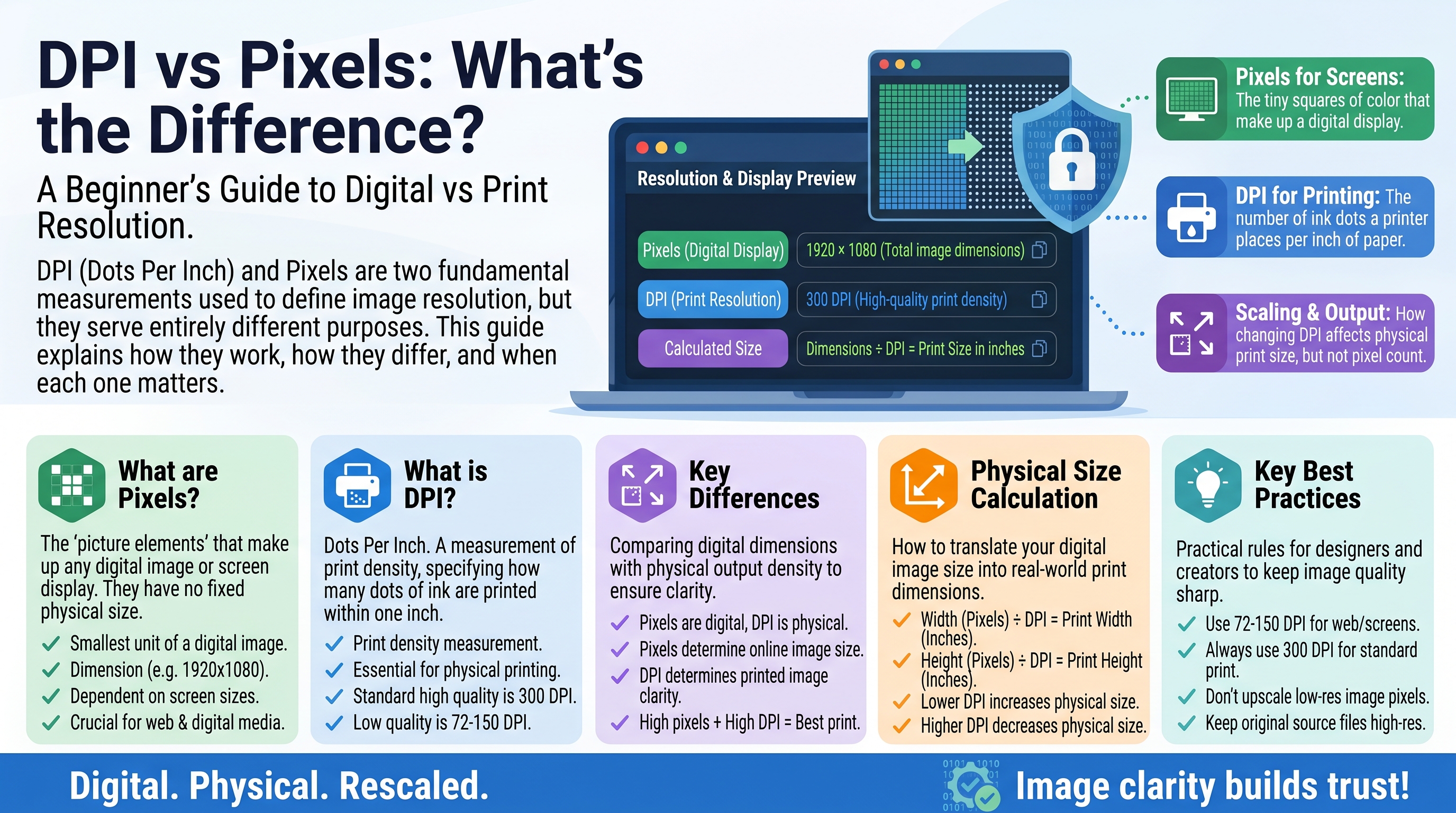
DPI vs Pixels: What's the Difference
"DPI", "resolution", "megapixels" — these terms get thrown around whenever images, printers and screens come up, and they are constantly mixed up. A 300 DPI image is not automatically better than a 72 DPI one, and your phone's megapixel count says nothing about print size. This guide untangles pixels, DPI and PPI so you know exactly what each number means and when it matters.
Pixels: The Building Blocks
A pixel is the smallest dot of color on a digital screen. Every digital image is a grid of pixels — a photo that is 4000 pixels wide and 3000 pixels tall contains 12 million pixels.
Pixel dimensions (e.g. 4000 × 3000) are the only thing that defines how much detail a digital image actually holds. More pixels = more detail = you can display or print it larger without it looking blocky.
Megapixels are just millions of pixels: 4000 × 3000 = 12,000,000 pixels = 12 megapixels. Phone makers love this number because bigger sounds better — but sensor quality and lens matter far more than raw megapixel count for actual photo quality.
Key point: pixels describe the digital image itself. They say nothing about physical size — a 4000 × 3000 image could be shown on a phone screen or printed on a poster. What changes is how densely those pixels are packed, which is where DPI comes in.
DPI and PPI: Density, Not Detail
DPI (dots per inch) measures how many dots of ink a printer places in one inch of paper. PPI (pixels per inch) measures how many pixels fit in one inch of screen.
People use the terms interchangeably, and for most practical purposes that is fine:
- PPI → screens (phones, monitors)
- DPI → printers (ink dots on paper)
Both answer the same question: how densely are the dots/pixels packed into physical space?
Here is the critical insight: DPI/PPI is just metadata attached to an image — a printing instruction. It does not add or remove a single pixel of detail. A 4000 × 3000 photo contains exactly the same image data whether it is labeled 72 DPI or 300 DPI.
The Print Size Formula
DPI connects pixel dimensions to physical print size with one simple formula:
Print width (inches) = pixel width ÷ DPI
Print height (inches) = pixel height ÷ DPI
Example — a 4000 × 3000 pixel photo:
At 300 DPI → 13.3 × 10 inches   (sharp, high-quality print)
At 150 DPI → 26.7 × 20 inches   (decent poster)
At 72 DPI  → 55.6 × 41.7 inches (billboard territory — blocky up close)
Same pixels, three very different physical sizes. This is why "300 DPI" became the print industry standard: at normal reading distance, the human eye cannot distinguish individual dots at 300 dots per inch, so prints look perfectly smooth.
Common DPI Standards
- 72 DPI — old screen standard; fine for images viewed only on screens
- 150 DPI — acceptable for large posters viewed from a distance
- 300 DPI — the professional standard for sharp prints (brochures, books, photos)
Why "72 DPI for Web" Is a Myth (Sort Of)
You have probably heard that web images should be 72 DPI. Here is the truth: browsers completely ignore the DPI value. A 1000 × 1000 image labeled 72 DPI and the same image labeled 300 DPI display at exactly the same size on screen — screens only care about pixel dimensions.
Where DPI genuinely matters:
- Printing — it directly controls physical print size and sharpness.
- Scanning — scanner DPI settings determine how many pixels get captured from the physical original.
- High-density ("retina") screens — these pack more pixels per inch (300+ PPI), which is why text and images look sharper on them. A phone screen might be 460 PPI while a desktop monitor is ~110 PPI.
Pixels in Practice: How Many Do You Need?
Use case                          Pixels needed
Instagram post                    1080 × 1080 (1.2 MP)
Full HD wallpaper                 1920 × 1080 (2 MP)
4K wallpaper                      3840 × 2160 (8.3 MP)
Sharp 4×6 inch photo print        1200 × 1800 (2.2 MP at 300 DPI)
Sharp 8×10 inch photo print       2400 × 3000 (7.2 MP at 300 DPI)
Sharp A3 poster                   3508 × 4960 (~17 MP at 300 DPI)
Notice how modest these numbers are — a 12 MP phone photo can print sharply at 8×10 inches with room to spare. You only need huge pixel counts for very large prints or heavy cropping.
Upscaling vs Real Detail
Enlarging an image in software (upscaling) spreads existing pixels over more space — it cannot create detail that was never captured. AI upscalers do better by intelligently guessing missing detail, but they are still guessing.
The rule: you can always shrink an image safely, but enlarging beyond its native pixels reduces sharpness. When in doubt, keep the original full-resolution file and export smaller copies for specific uses.
Key Takeaways
- Pixels = the actual detail in your image (4000 × 3000). This is what matters most.
- DPI/PPI = how densely those pixels pack into physical space — a printing/display instruction, not extra detail.
- Print size = pixels ÷ DPI. 300 DPI is the standard for sharp prints.
- Browsers ignore DPI — for screens, only pixel dimensions count.
- A 12 MP photo prints sharply up to about 8×10 inches; bigger prints need more pixels or lower DPI.
Frequently Asked Questions
Will changing my image from 72 DPI to 300 DPI improve quality? No. It only changes the default print size. The pixel data — the actual detail — stays exactly the same.
What is the difference between DPI and PPI? Technically, PPI (pixels per inch) is for screens and DPI (dots per inch) is for printers. In everyday conversation they are used interchangeably to mean density.
How many megapixels do I need for good prints? For a sharp 4×6 inch print at 300 DPI, just 2.2 MP. For 8×10 inches, about 7 MP. Most modern phones (12+ MP) exceed this comfortably.
Why does text look sharper on my phone than my monitor? Pixel density. A phone screen packs 400+ pixels per inch versus ~110 on a typical monitor, so individual pixels become invisible and everything looks smoother.
Conclusion
Pixels are the cake, DPI is the serving suggestion. Your image's pixel dimensions determine how much detail exists — DPI merely tells the printer how large to make it. Stop worrying about the DPI number on web images (browsers ignore it), keep your originals at full resolution, and use the simple pixels-÷-DPI formula whenever print is involved. With that, you will never be confused by a spec sheet again.
Related Articles
Related Articles
- Exchange Rates Explained: How Currency Conversion Works
- KB, MB, GB, TB: Data Storage Units Explained
- JPG vs PNG vs SVG vs WebP: Image Formats Compared
- Aspect Ratios Explained: 16:9, 4:3, 1:1 and More
- Roman Numerals: How They Work With a Conversion Chart
- Number Bases Explained: Binary, Octal, Decimal, Hexadecimal